
Activating Your First Screen
Connect a Roku, Google TV, or Apple TV device to your Roomcaster account
Install the Roomcaster app on your TV device
First, get the Roomcaster app running on the streaming device connected to your TV.
Roku:
- Press the Home button on your Roku remote
- Navigate to Streaming Channels (the Channel Store)
- Search for Roomcaster
- Select Add Channel
- Open the Roomcaster channel
Google TV / Android TV:
- Open the Google Play Store on your device
- Search for Roomcaster
- Click Install
- Open the Roomcaster app
Apple TV:
- Open the App Store on your Apple TV
- Search for Roomcaster
- Select Get to install
- Open the Roomcaster app
Roomcaster requires tvOS 17 or later, and runs on Apple TV 4K and Apple TV HD.
Enter the activation code
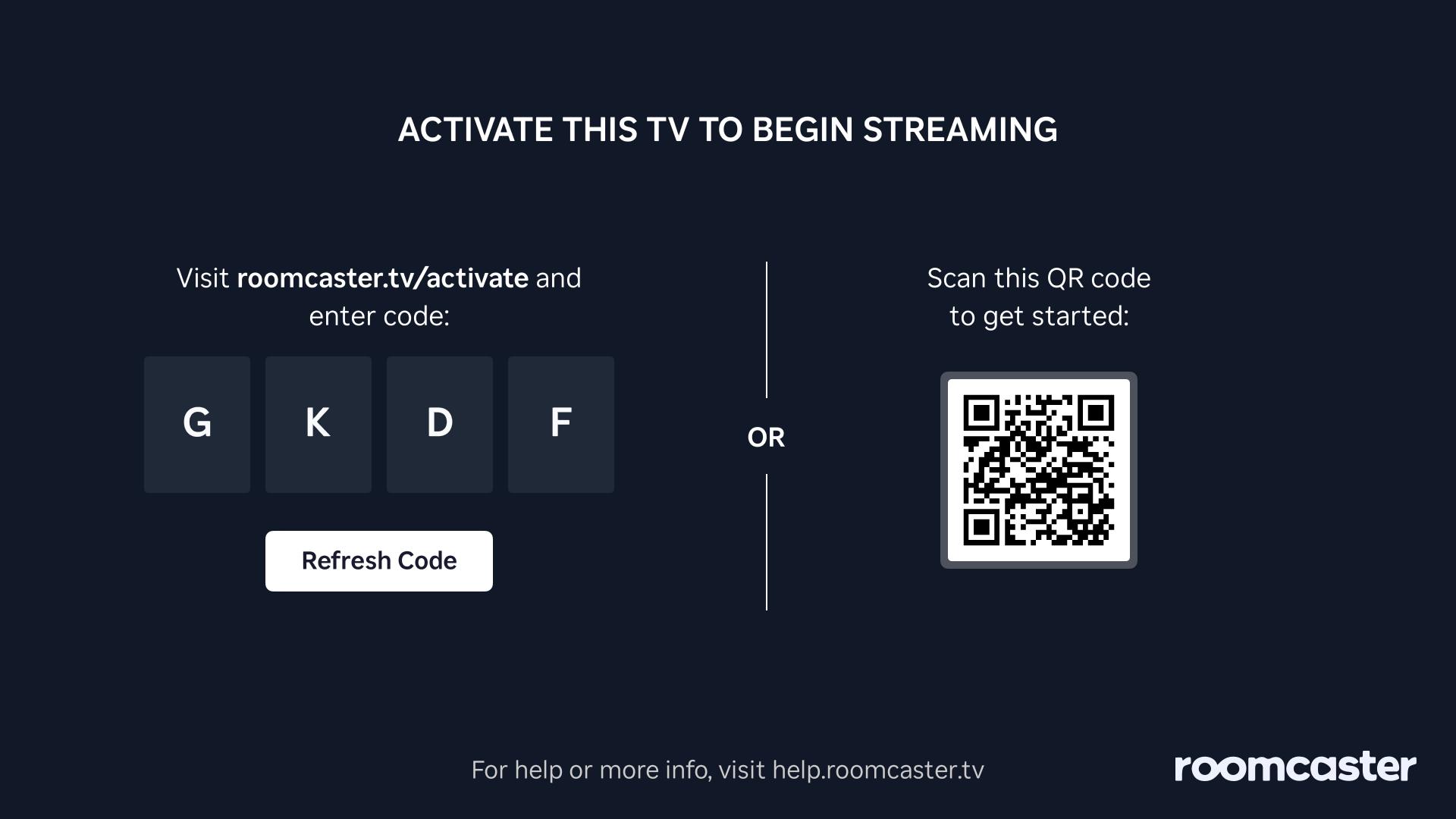
Once the app is open on your device, it will display a 4-character activation code on screen.
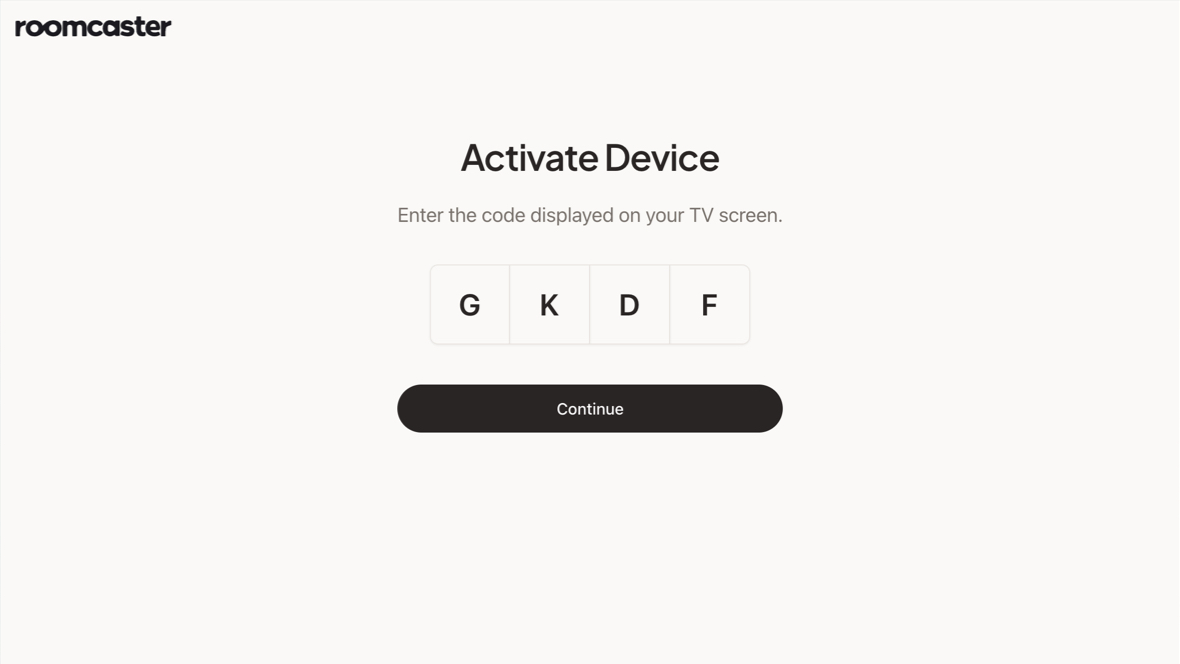
- Scan the QR Code or use your phone/computer's web browser to navigate to the Activate page (roomcaster.tv/activate)
- Type in the 4-character code shown on your TV
- Click Activate
The screen is created and linked to your account automatically.
You're connected
Once activated, the screen will appear on your Screens page of your web dashboard with an Online status. The device is now linked to your Roomcaster account and will start displaying content from whatever channel you assign to it.
You can edit the screen name and other details from the Screens page at any time.
Keep your streaming device connected to WiFi at all times. If the device loses its internet connection, it won't be able to receive content updates or report its status to your dashboard.
If the activation code expires before you enter it, simply select the Refresh Code button on the Roomcaster app or restart the app on your device to get a new code. Codes expire after 15 minutes.
Still stuck?
Our support team is here to help.