
How to Run Video on Every Screen in Your Church (Without the Sunday-Morning Scramble)

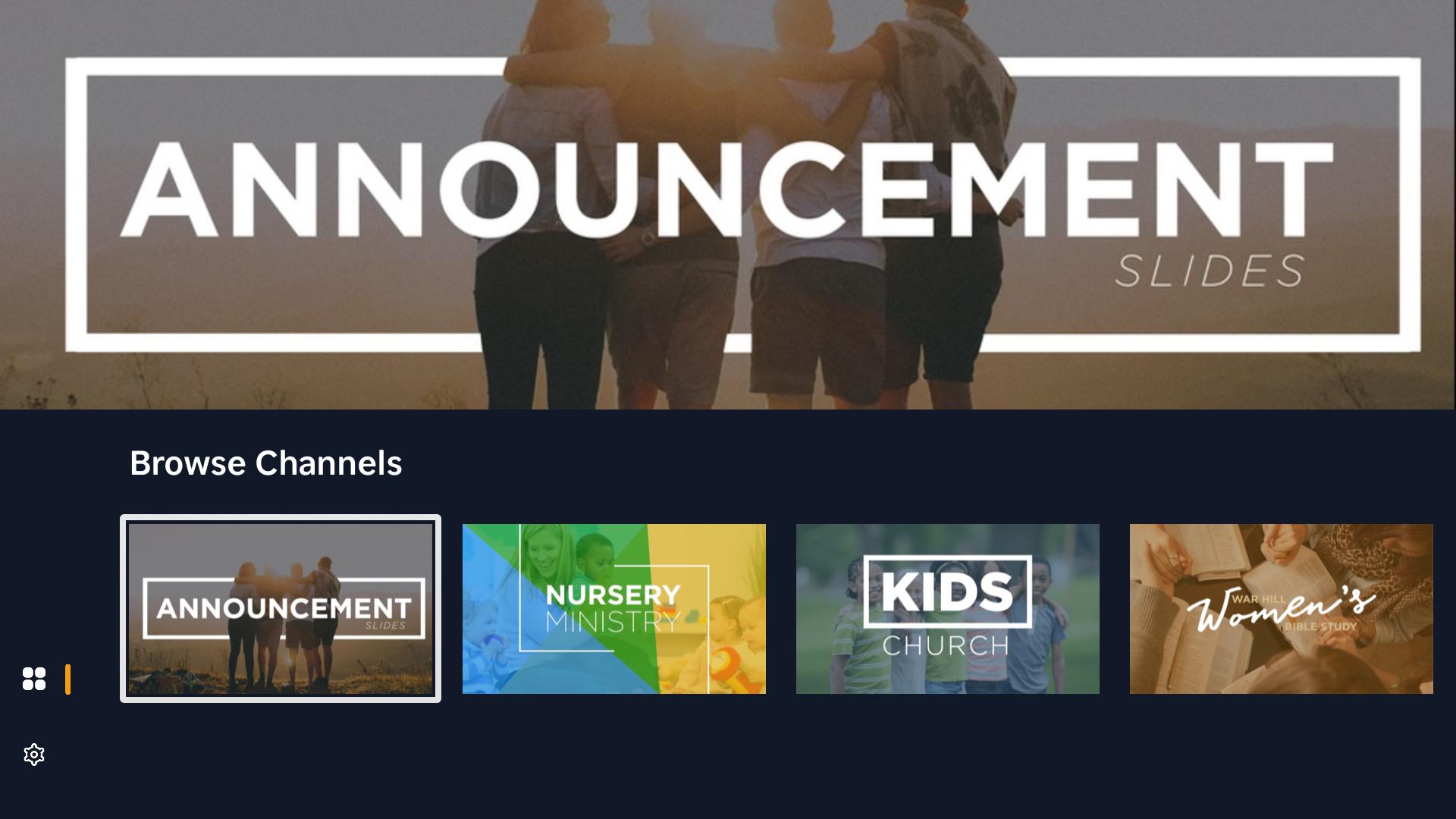
It's 9:14 on a Sunday morning. The Pre-K room needs this week's lesson video. The elementary wing has three rooms that should all be showing the same worship countdown. Somebody in the lobby is asking why the welcome loop froze on slide two. And the youth room TV is still showing last week's announcements because nobody remembered to swap the USB stick.
If you run AV or kids ministry at a church with more than a couple of screens, you know this scramble. It's not that any one room is hard. It's that all the rooms, at the same time, every week turns into a part-time job nobody signed up for.
This guide walks through the real ways a church can get video onto every screen — what each approach is good at, where it falls apart as you add rooms, and how to figure out which one fits where you are right now.
First, get clear on what you're actually trying to do
Before comparing tools, it helps to name the job. Most churches running video across rooms are trying to do some mix of these:
- Play the right video in the right room — curriculum in Pre-K, a different lesson in elementary, a countdown in the youth room.
- Keep things in sync — when the lobby and the worship center should show the same thing, they should match.
- Let a volunteer hit play without a tech degree — the person opening the Pre-K room at 8:45 shouldn't need to troubleshoot anything.
- Change content without visiting every room — ideally from a laptop at home on Saturday night, not from a ladder on Sunday.
How many of those you need — and across how many rooms — is what separates the approaches below. There's no single right answer. A two-room church and a twelve-room campus genuinely need different things.
Approach 1: USB sticks and per-room files (the manual method)
This is where almost everyone starts. You load the week's video onto a flash drive (or copy it to whatever's plugged into each TV), walk it to the room, and plug it in.
What's good about it: It's free, it's simple, and it works offline. No accounts, no subscriptions, no internet dependency. For one or two rooms, it's honestly fine — don't let anyone make you feel behind for using it.
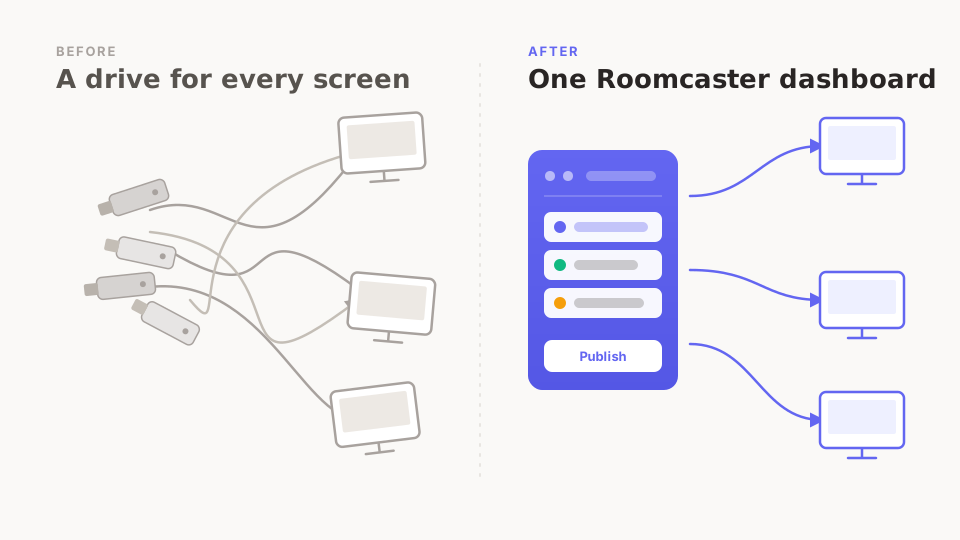
Where it breaks down: It doesn't scale with rooms. Every screen is a separate trip, a separate file, a separate thing that can go wrong. Updating content means re-copying to every stick. There's no way to see, from one place, what's actually playing where — so you find out the Pre-K room is showing the wrong week during the Pre-K hour. And the knowledge tends to live in one volunteer's head, which gets scary the week they're out of town.
Best for: Churches with one or two screens, or a tight budget and a reliable volunteer who doesn't mind the routine.
Approach 2: Single-screen and curriculum tools
The next step up is software made to play content on a TV — often through an Apple TV or a streaming device — with a real app instead of a raw video file. Some of these are built specifically for kids ministry curriculum and do that job well. Tools like Playlister live here, and broader church platforms like Subsplash and Planning Center include media and presentation pieces as part of larger suites.
What's good about it: A big step up from USB sticks. You get a proper app, easier content updates, and tools that understand church content — especially curriculum. If your main need is "get this week's lesson onto the kids' room TVs," a curriculum-focused tool can be a clean fit. The broad suites are appealing if you're already living in them for giving, check-in, or your app.
Where it breaks down: These tools tend to be organized around one screen at a time, or around one part of your ministry (just kids, or just the things inside a larger suite). As you add rooms across the building — lobby, worship, youth, multiple kids classes — you can end up managing each screen somewhat separately, or stitching together pieces of a suite that wasn't really designed to run your whole campus as one system. Hardware costs can also add up: solutions built only around Apple TV mean roughly $129+ per screen before you've played a single video.
Best for: Churches whose video need is concentrated in one area (most often kids curriculum), or who want media as one feature inside a suite they already use.
Approach 3: Central-control multi-room platforms
The third approach treats the whole building as the unit, not the individual screen. You upload content once to a web dashboard, organize it by room or audience, and every screen pulls what it's assigned — all managed from one place.
What's good about it: This is the approach built for the Sunday-morning scramble. One dashboard shows every room at once. You update content from a laptop on Saturday night and publish to all the screens that need it. A volunteer in any room just opens the app and hits play — the right content is already there. Lobby, Pre-K, elementary, youth, and worship aren't five separate problems anymore; they're five channels in one system.
Where it breaks down: It's more than you need if you only have one or two screens. There's a real (small) setup step to get your rooms and content organized the first time. And it assumes you want central control — if every room is run by a fully independent team that likes managing its own thing, a lighter tool might feel less like overhead.
Best for: Churches running video across several rooms — kids wings, lobby, worship, youth — who are tired of managing each screen on its own.
Where Roomcaster fits
We built Roomcaster for exactly this third case, because we lived the first one. We were the volunteers running between rooms with flash drives, troubleshooting cables before service, and finding out mid-morning that a room had the wrong video.
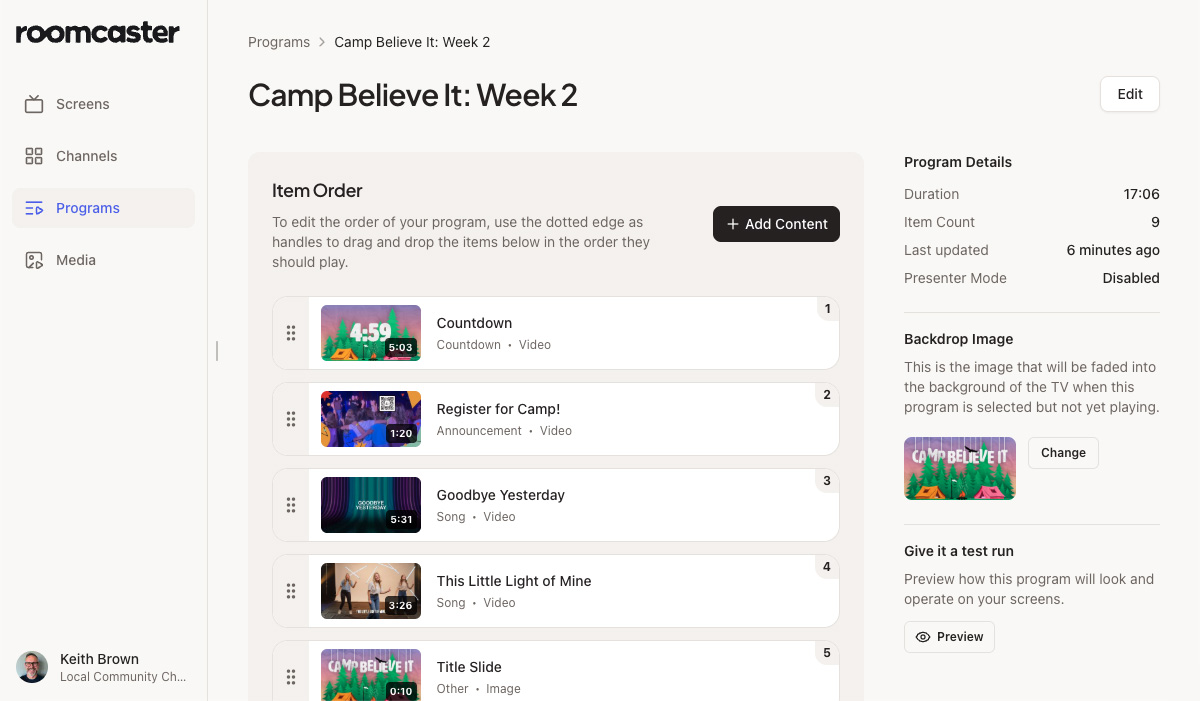
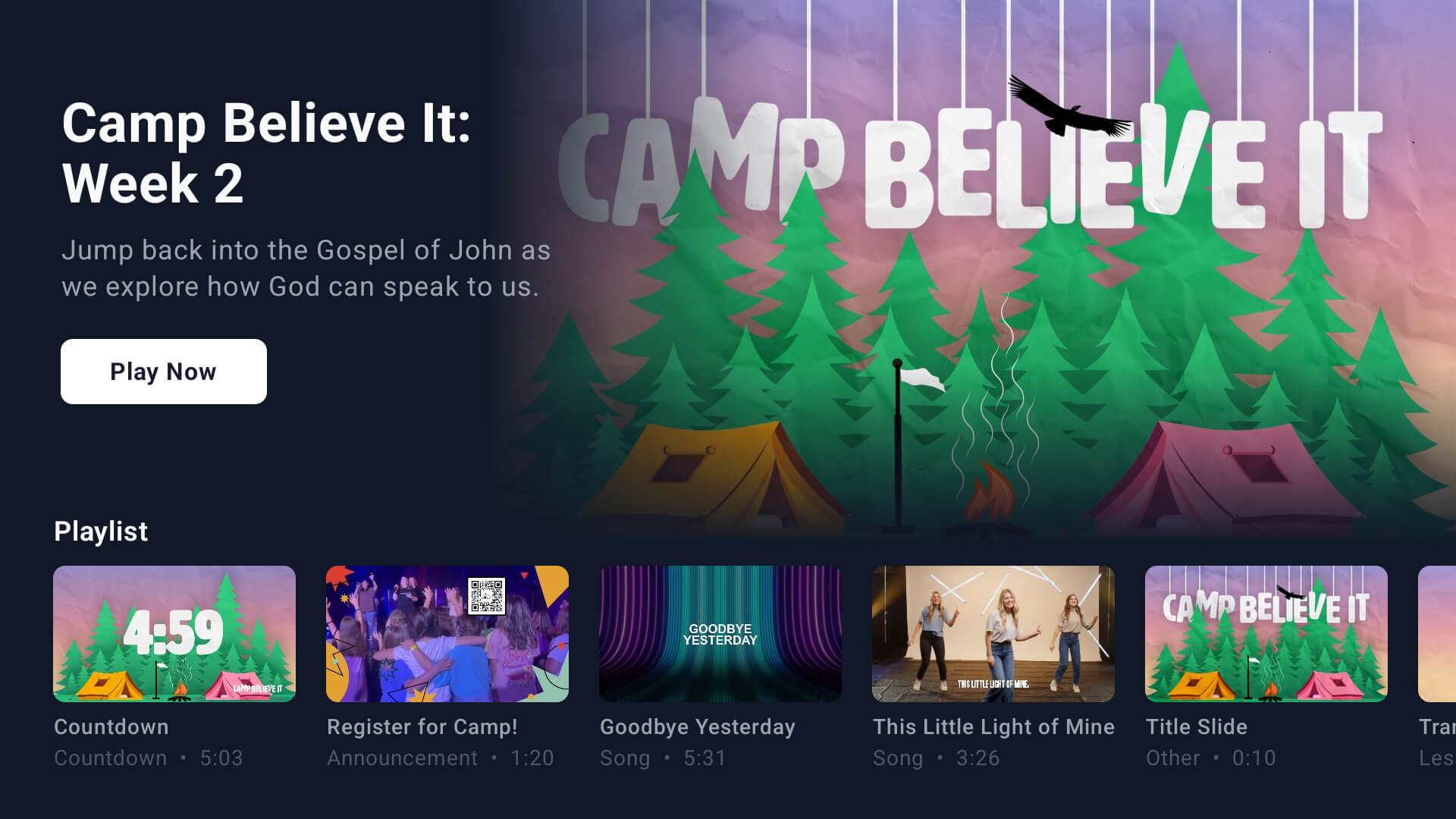
Roomcaster is a web dashboard where you upload your content, organize it into channels by room or audience (Pre-K, Elementary, Youth, Lobby, Worship), build reusable programs, and publish to every screen at once. It runs on Roku, Google TV, and Apple TV — Roku and Google TV are built into a lot of smart TVs already, or about $35 for a streaming stick, and the Apple TV app means you can use Apple TVs you already own rather than replacing them. Pricing is flat across all your screens, not per-screen, so adding rooms doesn't multiply your bill.
The point isn't that Roomcaster is the only good tool. If you have two screens, USB sticks are fine. If your whole need is kids curriculum, a curriculum-first tool might serve you well. Roomcaster is for the church running video in many rooms that wants to manage all of it from one place — without the Sunday-morning scramble.
A quick way to decide
- 1–2 screens, tight budget: USB sticks or a simple per-room setup. No shame in it.
- One ministry area (usually kids curriculum): A curriculum-focused tool, or media inside a suite you already use.
- Several rooms across the building, one team coordinating: A central-control multi-room platform like Roomcaster.
If you're not sure, the cheapest experiment is to try the multi-room approach on the rooms that scramble the most and see if Sunday gets calmer.
Frequently asked questions
How is this different from digital signage software?
Digital signage tools (think lobby menu boards and announcement loops) are built to run looping content on screens in public spaces. That's one use case Roomcaster handles well — but Roomcaster is built for the broader job of programming video across many rooms with different audiences: curriculum in classrooms, countdowns in worship, welcome content in the lobby. If your only need is a single always-on lobby loop, signage software can do it. If you're coordinating video across a whole campus, that's a different shape of problem.
Do I need an Apple TV for every room?
No — but you can use the ones you have. Roomcaster runs on Roku, Google TV, and Apple TV. Roku and Google TV are built into many smart TVs already, or about $35 for a streaming stick, so a room that needs a new device doesn't cost much to outfit. The difference from Apple TV-only tools is that you aren't required to buy a $129+ box for every room.
Can volunteers actually run this on a Sunday morning?
That's the whole design goal. Once content is published from the dashboard, a volunteer opens the app on the room's screen and the right content is already assigned — most of the time it's just "open and play." You can train someone on it in about a minute.
What happens if the internet goes down?
Content downloads to the device, so a screen can keep playing what it already has even if the connection drops mid-service. (Offline reliability is an area we keep improving.)
Can I keep the tools I already use?
Yes. Plenty of churches run Roomcaster alongside other software — using it for the multi-room video job while keeping their suite for giving, check-in, or their app. You don't have to rip anything out to try it on a few rooms.
Try it on your trickiest rooms
If Sunday mornings feel like a scramble across too many screens, the lowest-risk move is to try the multi-room approach on the rooms that cause the most stress.
Roomcaster is free to start — one screen. Set up a channel for your trickiest room, publish a video to it, and see whether your next Sunday gets a little calmer.
Ready to try it on your trickiest rooms?