
Roomcaster Is Now on the Apple TV App Store

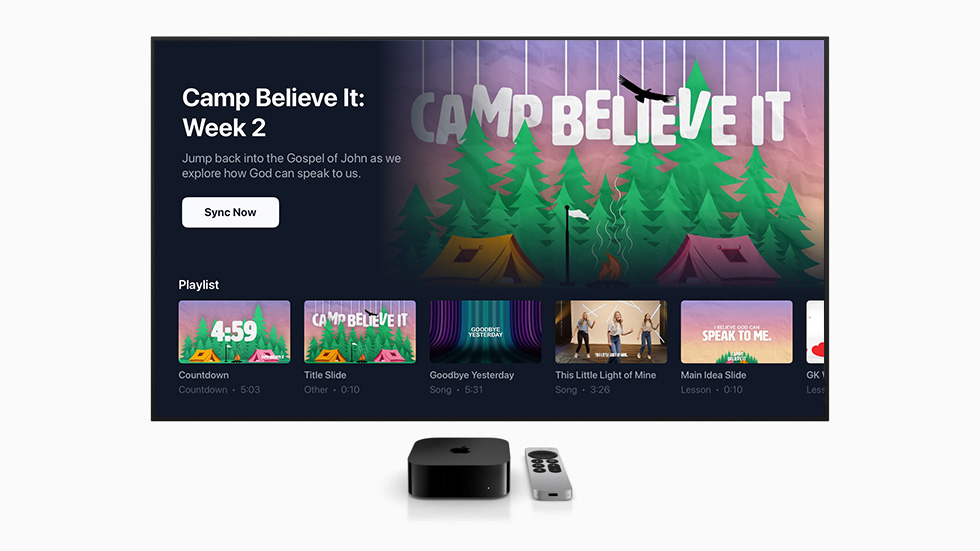
If you've talked to us in the last year, there's a decent chance you asked about Apple TV. Usually it went something like: "We've already got Apple TVs in every classroom. Do we really have to replace them?"
No. You don't.
The Roomcaster Apple TV app is live on the App Store. It's free, it runs on Apple TV 4K and Apple TV HD with tvOS 17 or later, and it does everything the Roku and Google TV apps do — channels, programs, playlists, synchronized playback, and Presenter Mode. Install it, activate the device once from your dashboard, and that Apple TV becomes a managed room display like any other screen in your building.
What this actually changes
For most churches, this is a hardware question, not a software one. Here's the honest version of what's different now:
- You can use the Apple TVs you already own. If they're mounted, wired, and working, there is no reason to pull them off the wall. Roomcaster runs on them natively.
- You can mix platforms freely. A Roku in the nursery, an Apple TV in the lobby, a Google TV stick in the youth room — they all appear in the same dashboard and take the same channels. The room doesn't care what box is behind the TV.
- Nothing about pricing changes. Roomcaster is flat-rate per organization, not per screen. Adding Apple TVs doesn't add a line item.
- Migration is not a project. There's no export, no re-upload, no reconfiguring. If your content is already in Roomcaster, an Apple TV picks up its assigned channel the moment it's activated.
What hasn't changed is our advice about buying new hardware. More on that below, because we'd rather be straight with you than sell you something.
Installing it
The same three steps as every other platform:
- On your Apple TV, open the App Store and search for Roomcaster. Select Get.
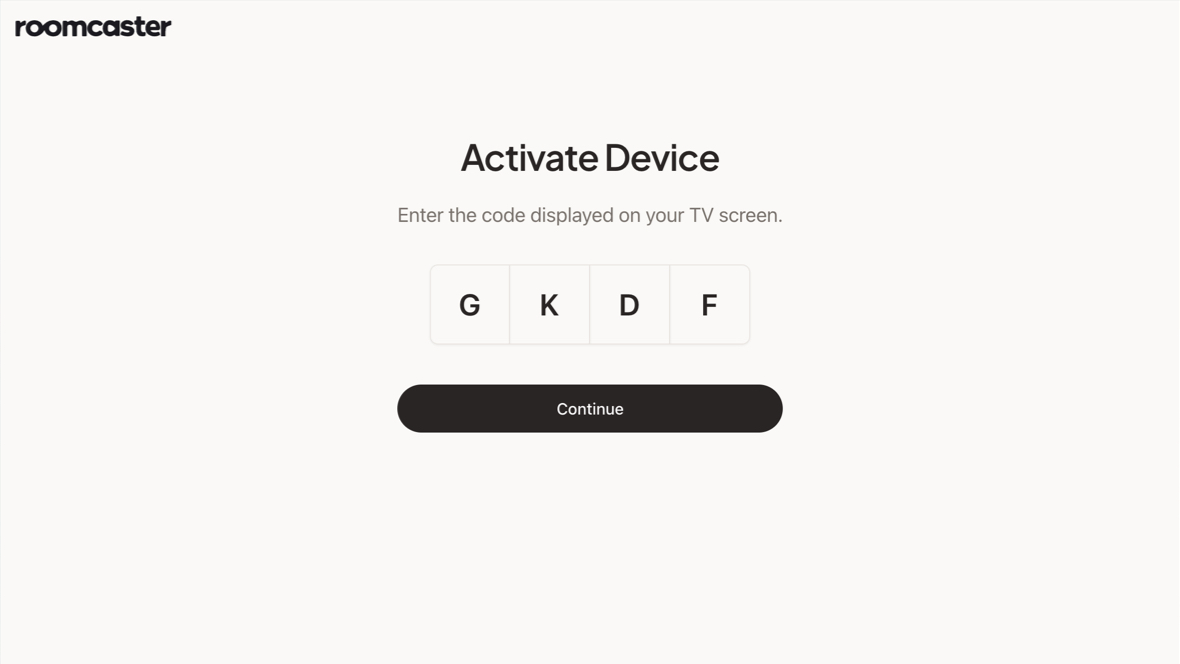
- Open the app. It shows a 4-character activation code and a QR code.
- In your Roomcaster dashboard, go to Screens, click Add Screen, and enter that code.
The Apple TV activates within a few seconds and starts playing its assigned channel. There's no login on the device itself — each screen is paired to your organization once, by an administrator, and then runs unattended. That's deliberate: a wall-mounted screen in Room 201 should never need someone to sign into it.
Setting up several at once? Activate them one at a time and name each screen for the room it's in — "Lobby TV", "Room 201" — as you go. It takes an extra ten seconds per device and saves you guessing which screen is which six months from now.
Should you buy Apple TVs for Roomcaster?
Probably not — and we'd say the same thing if you asked us in person.
Price: An Apple TV 4K runs $129–149. A Roku stick that does the identical job in a Roomcaster room is about $35. Across ten rooms, that's roughly $1,300 versus $350 for no practical difference in what ends up on screen.
Where Apple TV genuinely wins: It's excellent hardware. The interface has no ads, it handles long run times without complaint, and if your church is already standardized on Apple, keeping one ecosystem has real administrative value. For a single high-visibility screen where you want the most reliable box money can buy, it's a defensible choice.
Where it doesn't: Across a building full of rooms on a normal budget, you're paying roughly four times per screen for a difference your volunteers will never notice.
So: if the Apple TVs are already there, use them. That's exactly why we built the app. If you're outfitting new rooms, buy the cheap sticks and spend the difference on something that matters more.
One practical note — Apple TV is heavier than a stick and doesn't hang off the HDMI port. Plan on a mounting bracket (around $15) or running the cable through the wall. Our devices guide covers the mounting details for each platform.
A quick way to decide
- Already own Apple TVs and they work: Install the app. Done. Don't replace anything.
- Outfitting new rooms on a budget: Roku or Google TV, roughly $15–50 per screen.
- Mixed building, some Apple, some not: Mix them. Roomcaster treats every platform the same.
- One screen that absolutely cannot fail: Apple TV or a Roku Ultra, either on wired Ethernet.
Where Roomcaster fits
Roomcaster is a web dashboard where you upload content once, organize it into channels by room or audience, build reusable programs, and publish to every screen at once. The device in the room just plays what it's assigned — a volunteer turns on the TV, opens the app, and hits play.
Adding Apple TV means the platform now covers essentially every streaming device a church is likely to already have on the wall. That was the goal: the hardware you own shouldn't decide whether you can manage your screens properly.
Frequently asked questions
Is Roomcaster available on the Apple App Store?
Yes. The Roomcaster app is on the Apple TV App Store as of September 2026. It's free to download. Note that it's a tvOS app — it installs on an Apple TV device, not on an iPhone or iPad. You manage your screens from any web browser, so there's no phone app to install.
Which Apple TV models work?
Apple TV 4K (all generations) and Apple TV HD, running tvOS 17 or later. If your device can update to tvOS 17, it can run Roomcaster.
Do I need a different Roomcaster plan for Apple TV?
No. Pricing is flat across your whole organization and doesn't vary by platform. An Apple TV counts as one screen against your plan, exactly like a Roku or a Google TV device.
Can I mix Apple TV with Roku and Google TV in the same building?
Yes, and plenty of churches do. Every device activates independently against your account and shows up in the same Screens list. You can assign any channel to any screen regardless of platform, and Magic Sync keeps them playing in step across platforms.
What about Amazon Fire TV?
Fire TV isn't supported at this time. If you're buying new devices for the Android ecosystem, we'd recommend a Google TV device instead — the onn. 4K Pro is under $50 and is well tested with Roomcaster.
How is this different from signage software?
Digital signage tools are built to run looping content on screens in public spaces, and Roomcaster handles that use case well. But the job it's designed for is broader: programming video across many rooms with different audiences — curriculum in classrooms, countdowns in worship, welcome content in the lobby — from one dashboard. If your only need is a single always-on lobby loop, signage software can do it.
Try it on the Apple TVs you already have
If there's an Apple TV behind a screen in your building right now, you're about five minutes from seeing this work. Install the app, activate it, publish a video to a channel, and watch it play.
Roomcaster is free to start on one screen, and no credit card is required.
Ready to try it on your trickiest rooms?